
Customer Satisfaction Score (CSAT) trigger distribution in Zendesk

This article will show you how to start measuring Customer Satisfaction Score (CSAT) via triggers - automated emails after a ticket is resolved - in your Zendesk account.
You can either follow the integration video manual or follow the written documentation below the video.
Written documentation
Requirements
In this article
NOTE: every step is the article is the same for CSAT, NPS and CES
Connecting Zendesk with Nicereply
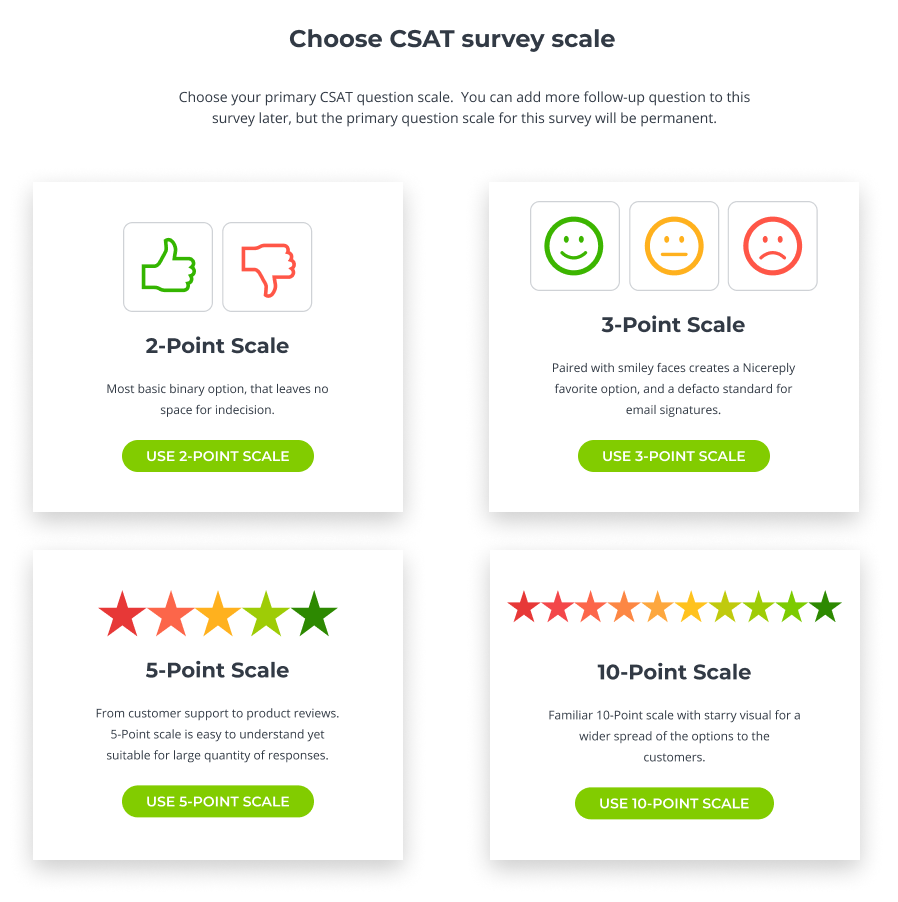
1. Choose the CSAT metric in the “left menu” in your Nicereply account. Click on START CSAT. If you do not see the START CSAT button, click on the NEW SURVEY button in the top left corner of the screen. Then, choose your primary CSAT question rating scale. Once you choose the survey rating scale, it is not possible to change it later.

2. From distribution options, choose TRIGGER
3. You’re on the app directory page now, click on the Zendesk icon
4. Add your Zendesk hostname (e.g., ACMEcompany.zendesk.com). Hit "Connect and continue".

- Connect Nicereply with your Zendesk account using your Zendesk credentials.
Note: Ensure that you have admin access to the Zendesk account.
6. Import your agents in the next step. Add your users from Zendesk to Nicereply. New users will get an automated email with login instructions from us.
Trigger activation in Zendesk
6. You’re on the right track! The CSAT trigger is waiting for activation.

7. You can manage the trigger behaviour in “Trigger settings”. When you’re ready, hit the “activation” button.

When you're done editing your trigger settings, click SAVE SETTINGS, hit the "activation" button, and activate your trigger to start distributing your surveys.

Troubleshooting
By default, Zendesk will close your tickets after 96 hours through an automation rule. You should know that closed tickets can't be updated with Nicereply CSAT. Please make sure that the period for ticket closing is at least 48 hours longer than the period after which Nicereply will send the CSAT survey.

Don't worry, you will always find all your CSAT ratings in Nicereply – no ratings will be lost.
Good job!
Nicereply will utilise your existing integration with Zendesk, and the workflow is as follows:
- After CSAT trigger activation, Nicereply will start scanning the status of your tickets regularly
-
Nicereply will send the CSAT survey to the ticket requester for all tickets created via the Email channel, with status Resolved and without ticket update for 48 hours (by default)

- Nicereply will collect the CSAT ratings and push them to Zendesk as a note and the custom field value


